Convert Images to PDF in Your Browser
JPG, PNG, HEIC, TIFF, WebP, AVIF, GIF, BMP and SVG — combined into one PDF or saved separately. The converter runs inside this page, so your images are never sent to a server.
- 🔒 Nothing is uploaded
- 💧 No watermark
- ♾️ No file limit
- 🧾 No sign-up

Image to PDF converter
Every image becomes a page. Nothing is uploaded — the conversion happens in this tab.
🔒 Private by design: your images are converted in this browser tab and never uploaded.
Drop in whatever your camera or computer saved
A baseline JPEG is copied into the PDF byte for byte. A PNG is re-compressed, losslessly — every pixel identical. Everything else is decoded here in the browser and written once, and each file tells you afterwards which route it took.
Pick the one that matches your files
Same engine behind each, tuned for the format and the job.
Without losing quality
After converting, each file tells you exactly which route it took and what came out.
HEIC to PDF
Reads Apple’s HEIC format in any browser, including the ones that cannot display it.
Under a size limit
Set 200 KB, or any figure a portal demands. This is the one mode that re-compresses on purpose.
A4 and page size
Choose the sheet, the margin and how the image sits on it — and see the print resolution you get.
Multi-page TIFF
Scanner and fax TIFFs become multi-page PDFs, page for page, and any page we cannot read is named.
JFIF to PDF
A JFIF is a JPEG. It goes into the PDF as-is, with nothing decoded and nothing re-compressed.
WebP, AVIF, BMP
Your browser already decodes all three. They are re-encoded once on the way into the PDF.
Three steps, none of them a sign-up
The converter is JavaScript running in your own browser. Your images are never sent anywhere.
Choose your images
Drop them onto the page or tap Choose images. They are read straight from your device — no upload happens, and none of this needs a connection once the page has loaded.
Arrange and set the page
Drag the thumbnails into the order you want, rotate anything sideways, then pick a page size — A4, Letter, or cut to the image with no border at all.
Download your PDF
One merged document, or a separate PDF per image in a ZIP. It saves straight to your downloads folder, with no watermark and nothing to sign up for.
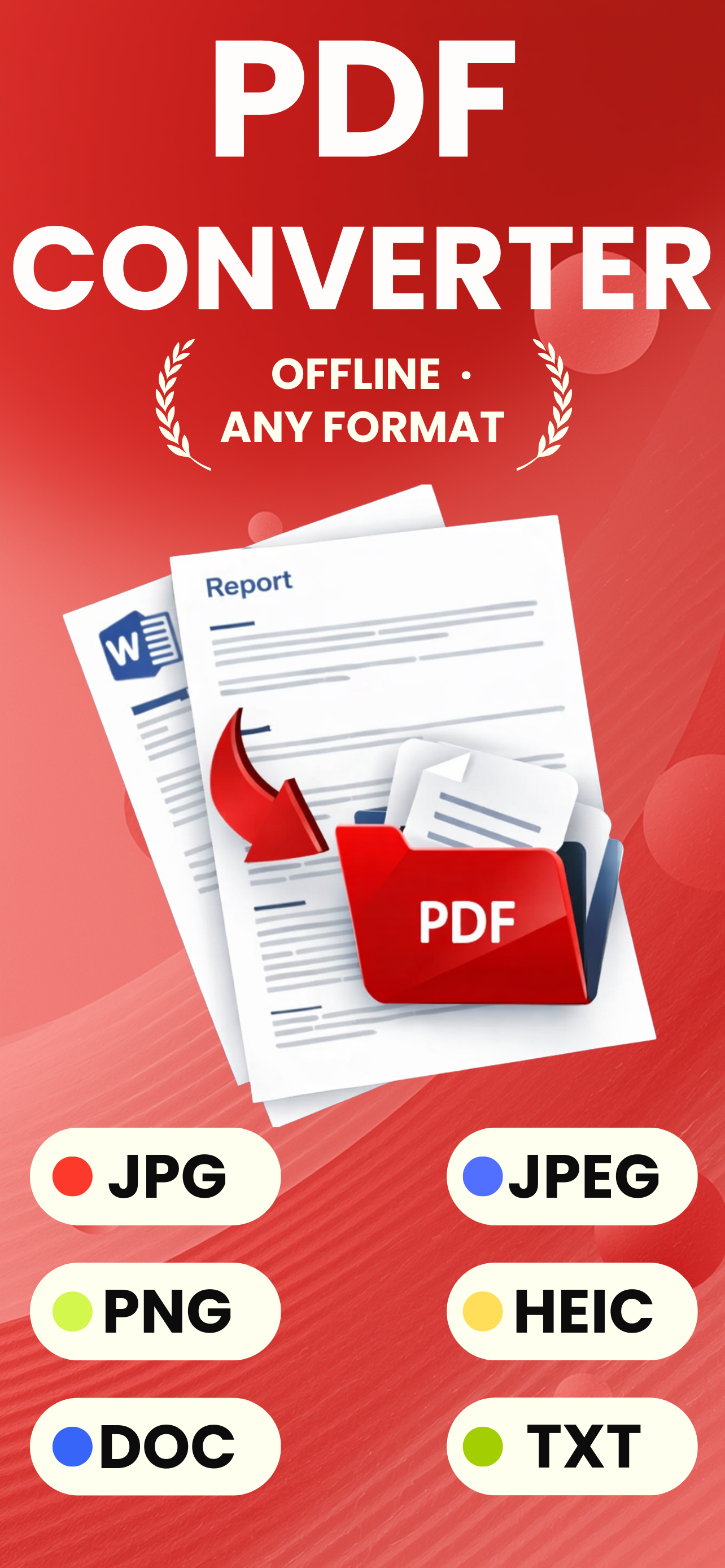
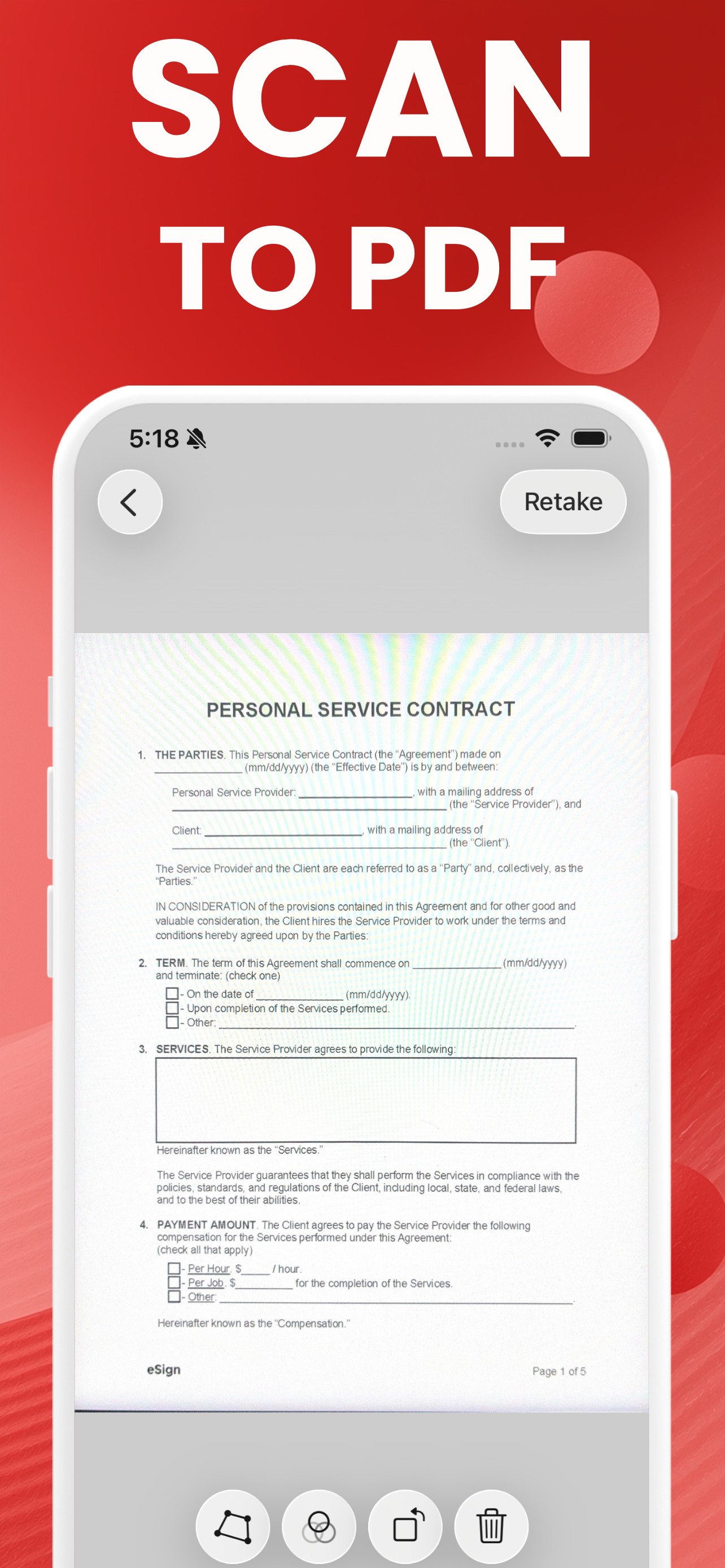
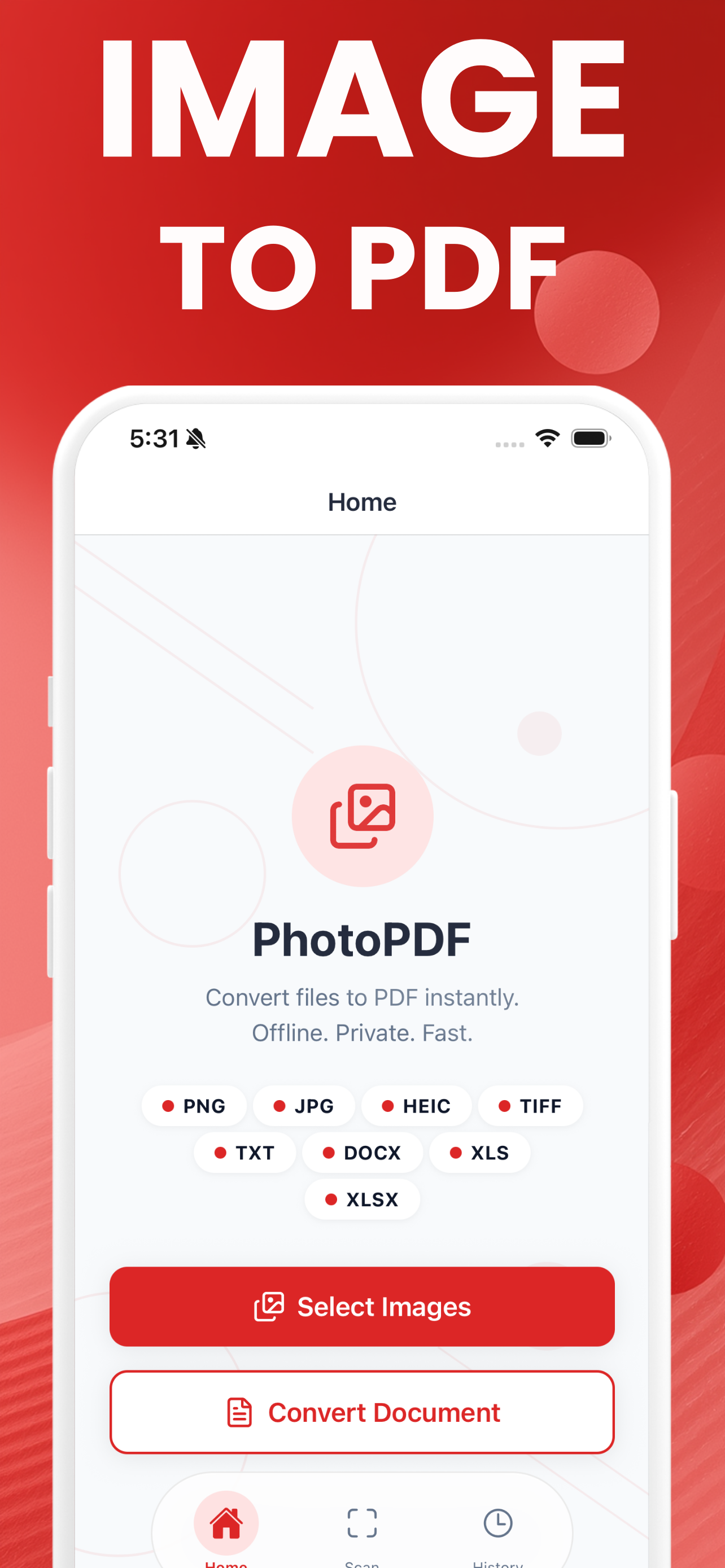
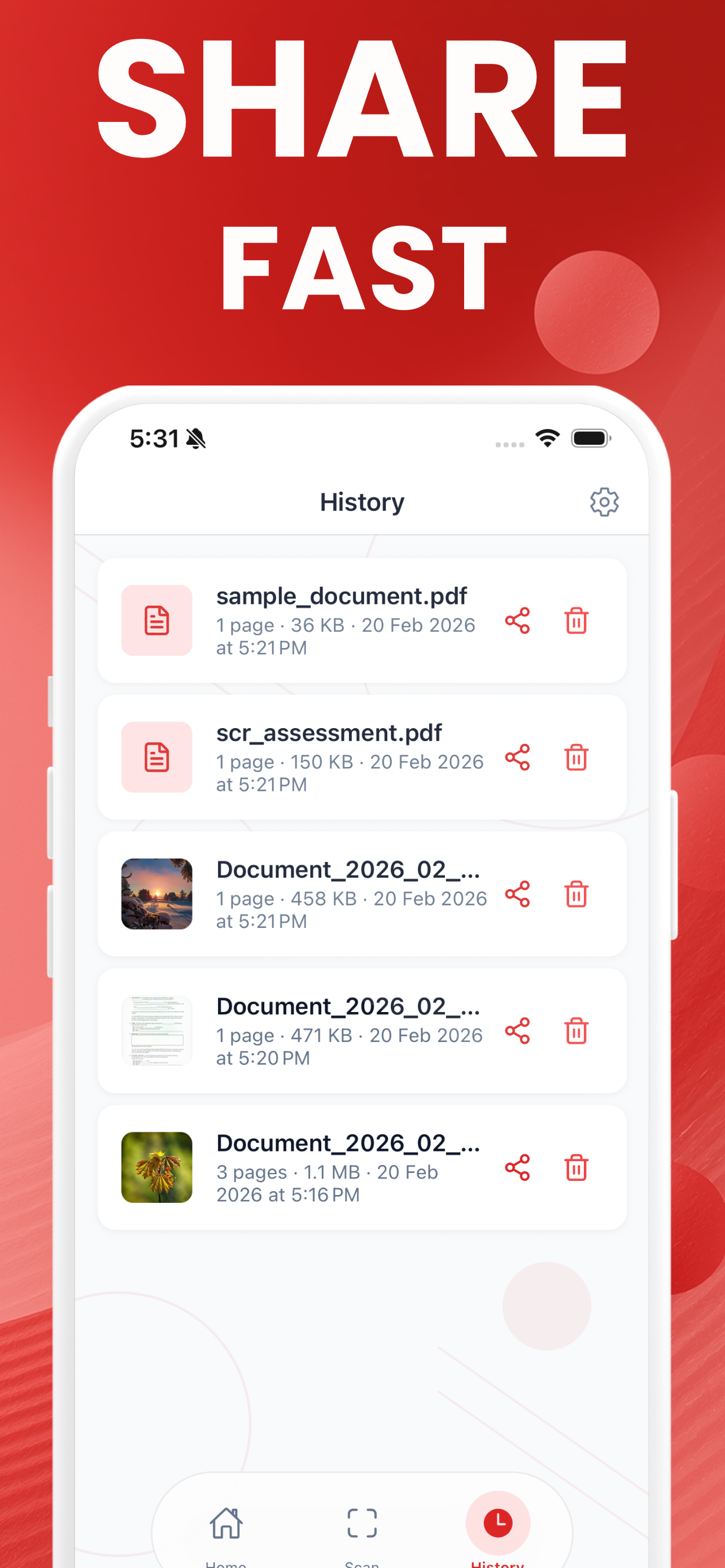
Same conversions, without a browser
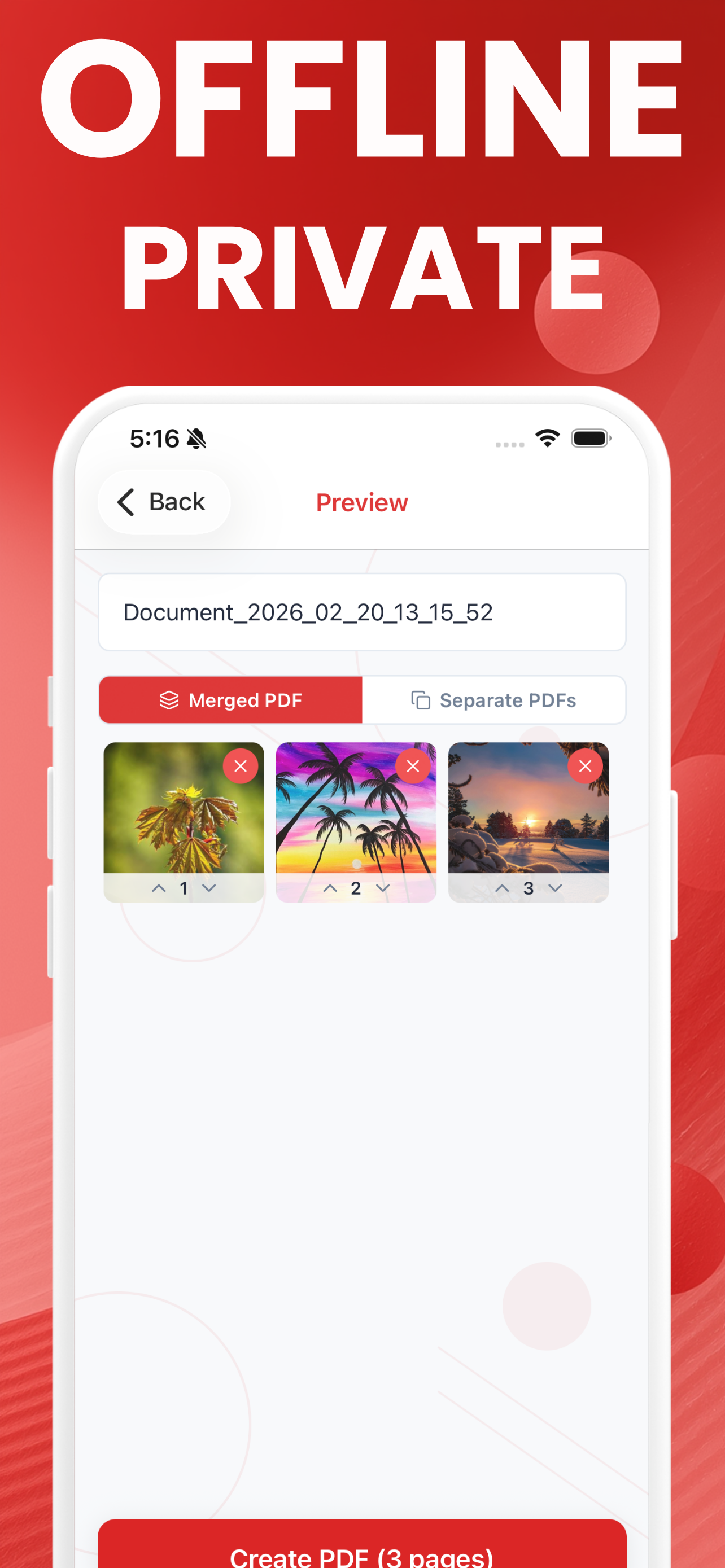
The free app adds a document scanner, keeps a history of everything you have made, and works with no signal at all.
How to get the PDF you actually needed
The specific problems people hit — file too big, page the wrong size, photo sideways — answered properly.
How to Convert an Image to PDF on Windows 11
Microsoft Print to PDF works, but it re-rasterises the image and adds printer margins. Here is that route, and a browser tool that keeps the original.
Read the guide → GuidePreview Only Exports One Image to PDF
Preview's Export as PDF only saves the top image. Here are the three Mac routes that actually merge a stack, in the order you want, HEIC included.
Read the guide → GuideConvert an Image to PDF on a Chromebook
No app to install and no Play Store detour: convert JPG, PNG or HEIC to PDF in the Chrome tab you already have open, without uploading anything.
Read the guide → GuideConvert TIFF to PDF Without Adobe
Windows and macOS both struggle with TIFF. Turn single or multi-page TIFFs into PDFs with no Acrobat, no installer and no upload — in your browser.
Read the guide → GuideConvert Images to PDF on an iPad
Files and Safari can do it in a pinch. For batches, reordering and offline work the iPad app is faster — and the browser tool runs right here.
Read the guide → GuideHow to Make a 300 DPI PDF From an Image
300 DPI is a pixel count, not a switch. Work out what your image can print at, then build the PDF at the right page size — with the DPI shown to you.
Read the guide → GuideSplit a Long Image Into a Multi-Page PDF
Tall screenshots, chat logs and scrolling captures get sliced across sequential A4 or Letter pages, with a clean overlap so no line is cut in half.
Read the guide → GuideConvert Images to PDF With No Daily Cap
iLovePDF stops at 20 files, FreeConvert at 10 jobs a day. This tool takes up to 200 images and 600MB in one go, with no account and no daily cap.
Read the guide → GuidePNG or JPG: Which Belongs in Your PDF?
One goes into a PDF untouched, the other gets rebuilt. Which format keeps text sharp, which keeps files small, and what changes on the way in.
Read the guide → GuideWhy Your Image Colors Change in a PDF
Wide-gamut photos can look flat or shifted once they are in a PDF. Here is what happens to color profiles, and how to check before a paid print run.
Read the guide → GuideWhy Images Come Out Rotated in a PDF
Photos that look upright on your phone turn sideways in the PDF. That is the EXIF orientation tag. Here is why it happens and how to correct it.
Read the guide → GuideWhy Your PDF Is So Much Bigger Than the Images
A 3MB photo can become a 12MB PDF page. Here is where the size comes from — PNG expansion, resolution, page count — and the four ways to bring it down.
Read the guide → GuideConvert Images to PDF Without Installing Anything
Locked-down work laptop, school Chromebook or a PC you do not own? Convert images to PDF in a browser tab — no installer, no admin rights, no upload.
Read the guide →Questions worth a straight answer
Is it safe to convert images with an online converter, and do my files get uploaded?
Does converting a JPG to PDF reduce the quality?
Is there a file limit, and do I need to sign up?
How do I convert an image to PDF on Windows 11 without installing anything?
How do I combine several images into one PDF on a Mac?
Can I make the PDF fit a size limit like 200KB?
Does this work on a Chromebook?
Can I convert images to PDF on an iPad?
Can I convert a multi-page TIFF or a scanned fax into a PDF?
My image came out sideways in the PDF — why?
How do I know whether my image is good enough to print at 300 DPI?
Why do the colors look different once the image is in a PDF?
Convert on your phone, with or without signal
The free iPhone app does everything this page does, plus a document scanner that finds the edges of a page for you, and a history of every PDF you have made. Nothing is uploaded there either.